¶ Dashboard
The dashboard is the main operator panel of the platform, where you can display all the necessary information on the analytics system, including streams from cameras, statistics, graphs, charts, devices and plugins. It provides the user with the ability to generate a page that provides information about the various components of the system in the form in which it is required.
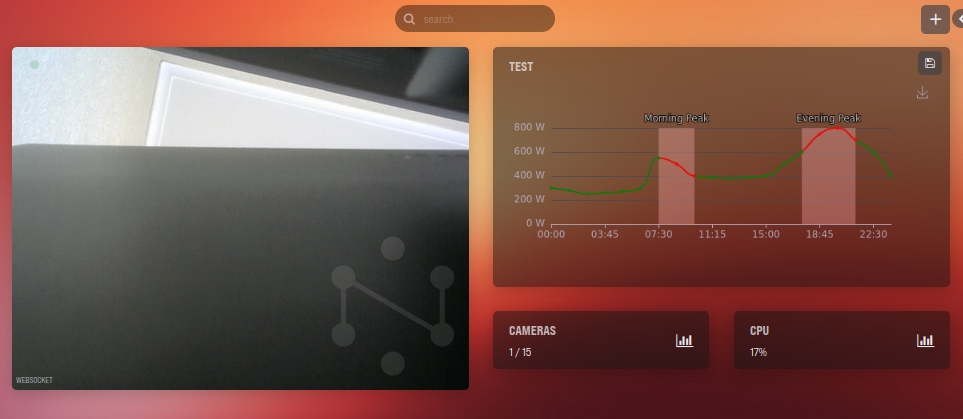
At the top of the information panel there is a search bar, with which you can find the necessary information about the parameters and elements of the platform by keywords.
¶ Adding Items to the Dashboard
In the upper right corner of the information panel there is a button with a plus, which allows you to add an element of interest to the panel.
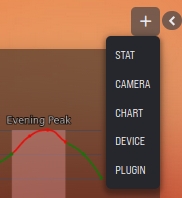
You can add the following elements:
- INFO - Adding statistics on cameras, events, system components, etc.
- CAMERA - Adding a window with a video stream from the camera.
- CHART - Adding graphs and charts.
- DEVICE - Adding a device widget.
- PLUGIN - Adding a plugin.
After adding an element, it will appear in the information panel field.
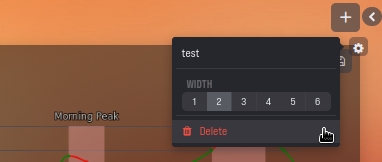
You can move an element on the screen using drag and drop. By clicking on the gear icon in the upper right corner of an element, you can change the width or remove it.
¶ STAT
Adding statistics on cameras, events, system components, etc.
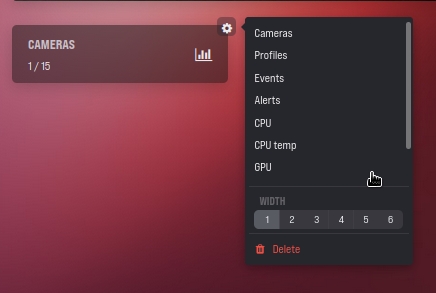
When you hover over the added element and click on the gear in the drop-down list, you can select the following elements to display on the screen:
- Cameras - total number of cameras
- Profiles - total number of people's profiles in the system
- Events - total number of events for the current day
- Alerts - total number of alarms for the current day
- CPU - degree of CPU utilization
- CPU temp - CPU temperature
- GPU - one or more GPUs with indication of GPU utilization, total and used amount of RAM
- RAM - total and used amount of RAM
- Disk - one or more connected drives with free space
¶ CAMERA
Adding a window with a video stream from the camera.
When you hover over the added element and click on the gear in the drop-down list, you can select the camera you want to add.
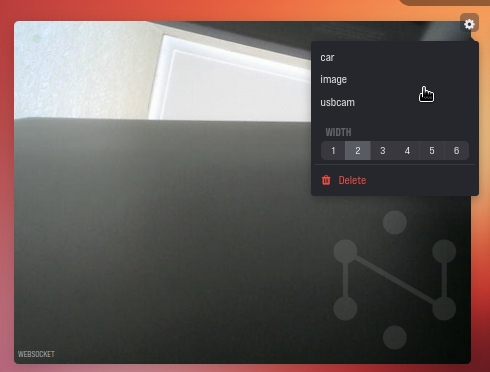
The drop-down list contains cameras located in the "Cameras" subsection of the "Settings" section.
After selecting a camera in the element field, the video stream from the camera will open, and additional control and transition buttons will appear:
- Icon with three dots - allows you to leave only the necessary fields on the video stream, and not all fields received from analytics
- Button "Open" - opens the camera page in the "Video" section
- Button "Edit" - opens the camera editing page in the "Cameras" subsection of the "Settings" section
- Video player control buttons - rewind bar, video playback, pause, change volume, switch to full screen mode
¶ CHART
Adding graphs and charts.
When you hover over the added element and click on the gear in the drop-down list, you can select the graph or chart that you want to add.
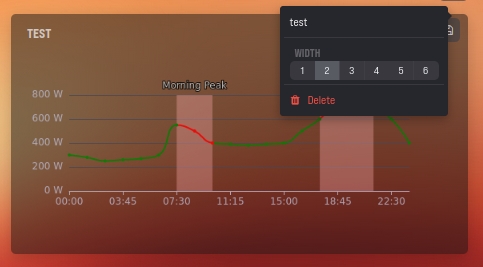
The drop-down list contains graphs and charts found in the "Charts" section.
After selecting a graph or chart, it will open in the element field.
¶ DEVICE
Adding a device widget.
When you hover over the added element and click on the gear in the drop-down list, you can select the device you want to add.
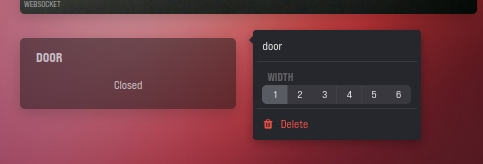
Once a device has been added, it can be controlled using the button in the element field.
¶ PLUGIN
Adding a plugin.
When you hover over the added element and click on the gear in the drop-down list, you can select the plugin you want to add.